Record the printer, label and ribbon references first. Then review loading, maintenance and settings against the printer instructions, and investigate the ribbon-and-material match. Change one variable at a time and retain a sample of the defect.
Start with a repeatable baseline
Record the exact printer, label stock and ribbon reference. Check the correct print mode, loading path and basic maintenance using the printer manufacturer’s instructions. Keep a sample of the defect.
Smudging or poor resistance
Review whether the formulation is appropriate for the label surface and exposure. DNP identifies ink-and-label compatibility as an important cause of smearing. Adjustments alone may not resolve an unsuitable material combination.
Define when the defect occurs: immediately after printing, after handling or only after a specific exposure. This helps separate transfer issues from application resistance.
Faint or incomplete printing
Inspect media alignment, ribbon loading and the printhead condition. Review the manufacturer’s recommended speed and energy settings for the actual media. Change settings gradually and keep a record rather than increasing heat without a defined limit.
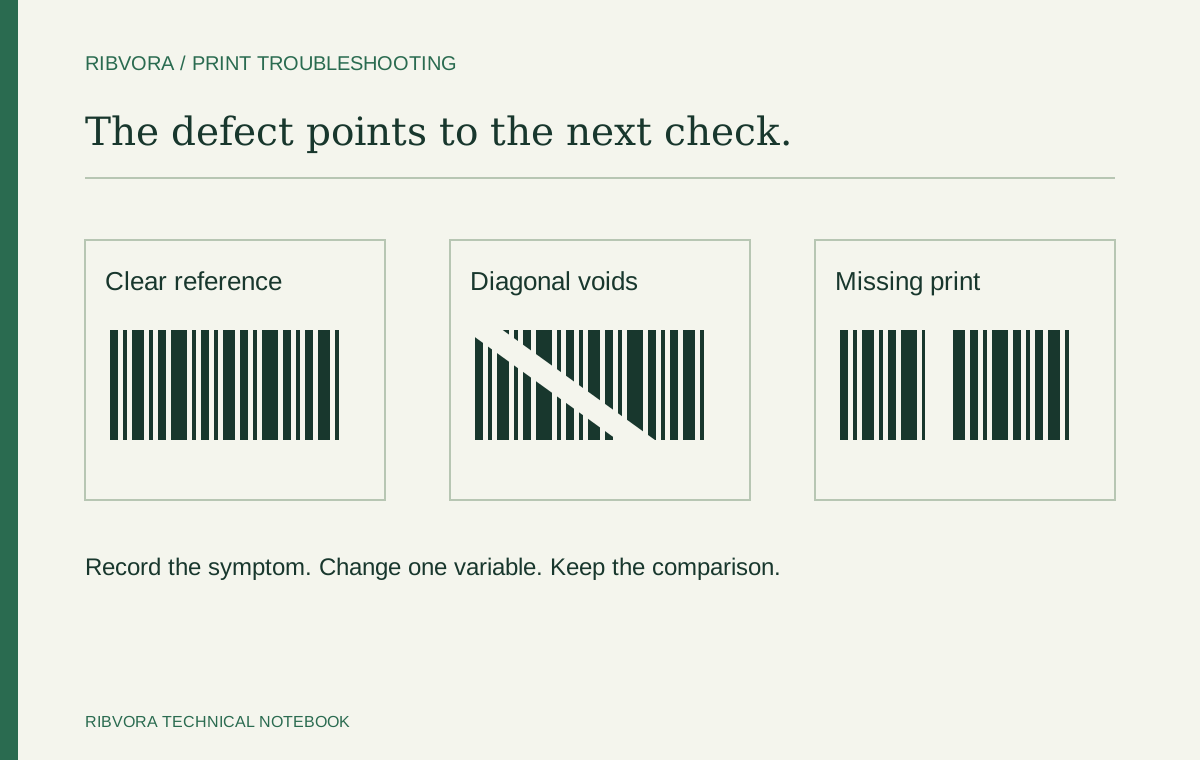
Wrinkles or diagonal voids
Check that the ribbon is correctly centered, follows the specified loading path and is tensioned according to the printer instructions. Consult the printer manual before adjusting pressure or mechanical settings.
Ribbon breaks
Check for mechanical loading issues, excessive energy settings or designs with large concentrated printed areas. DNP notes that concentrated ink areas can weaken ribbon during printing. Stop and investigate a recurring break rather than treating it as normal consumption.
Prepare a useful support request
Include clear photos of the defect and ribbon loading, current settings and the exact consumable references. Mention whether the problem is new or follows a change in stock, ribbon batch, artwork or printer settings.
Use a symptom log before changing the setup
A useful diagnostic record states where the defect appears, whether it repeats and what changed before it began. Photograph the same area of the label for each trial and keep a sample where practical.
| Symptom | Check first | Useful detail to record |
|---|---|---|
| Diagonal unprinted lines | Loading path, ribbon alignment and printer guidance | Photo of the defect and loaded ribbon |
| Fine text fades or breaks up | Artwork, resolution, maintenance and supported settings | Smallest text and current speed / energy |
| Print smears after contact | Ribbon-and-stock match and actual contact conditions | Material reference and exposure method |
| Ribbon repeatedly breaks | Loading, concentrated ink areas and energy settings | Point of failure and the printed design |
| Only one label batch fails | Exact face stock or coating reference | Previous and current stock identification |
Know when to stop adjusting
Stop the trial if repeated breaks, visible damage or a printer error makes continued operation inappropriate. Follow the equipment manufacturer’s safety and maintenance instructions before inspecting or changing mechanical settings.
If a defect persists after confirming loading and a sound baseline, review the material match and formulation with the supplier. Increasing heat without a defined operating limit is not a universal fix for an unsuitable ribbon-and-label combination.
Send a support request that can move the investigation forward
Include the printer model and resolution, exact ribbon and label references, current settings, defect photos and whether the issue follows a change in batch or artwork. State whether the defect occurs immediately or only after handling or cleaning.
The next step might be a setup correction, a controlled material comparison or a different candidate formulation. A useful response should identify which question the proposed test will answer rather than promise a replacement without evidence.
Distinguish a changing defect from a fixed missing track
A diagonal defect that moves with wrinkles and a straight void that stays in the same position need different checks. Follow the model’s print-quality and maintenance guidance before concluding that a ribbon is defective.
Keep a before-and-after comparison
Retain one print before the change and one after it, using the same artwork area. Record only the variable you changed. If several variables change at once, the result may improve without showing which change mattered.
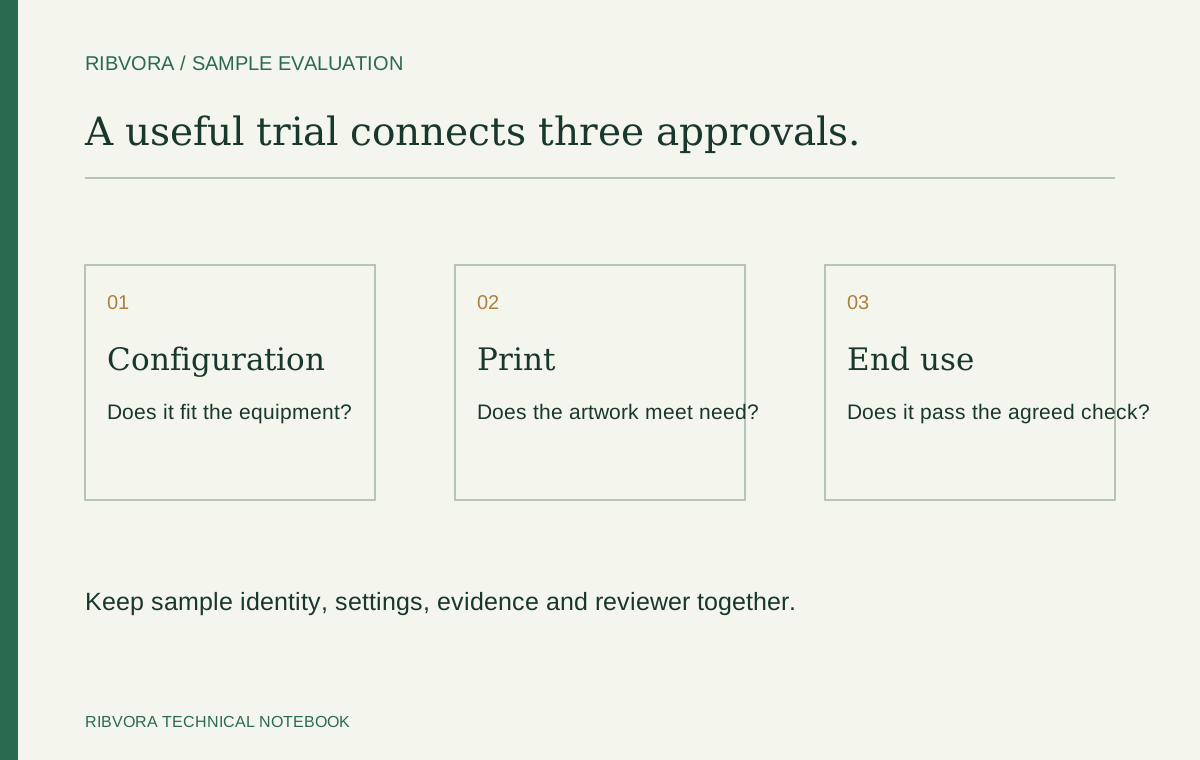
Close the investigation with a reproducible setting record
Once the agreed result is restored, document the actual stock, ribbon and settings. State what should trigger review if the defect returns. A corrected print without a setup record leaves the next operator to repeat the investigation.
Further reading & sources
These sources support general technical guidance. Product approval requires evidence for the exact formulation and application.